
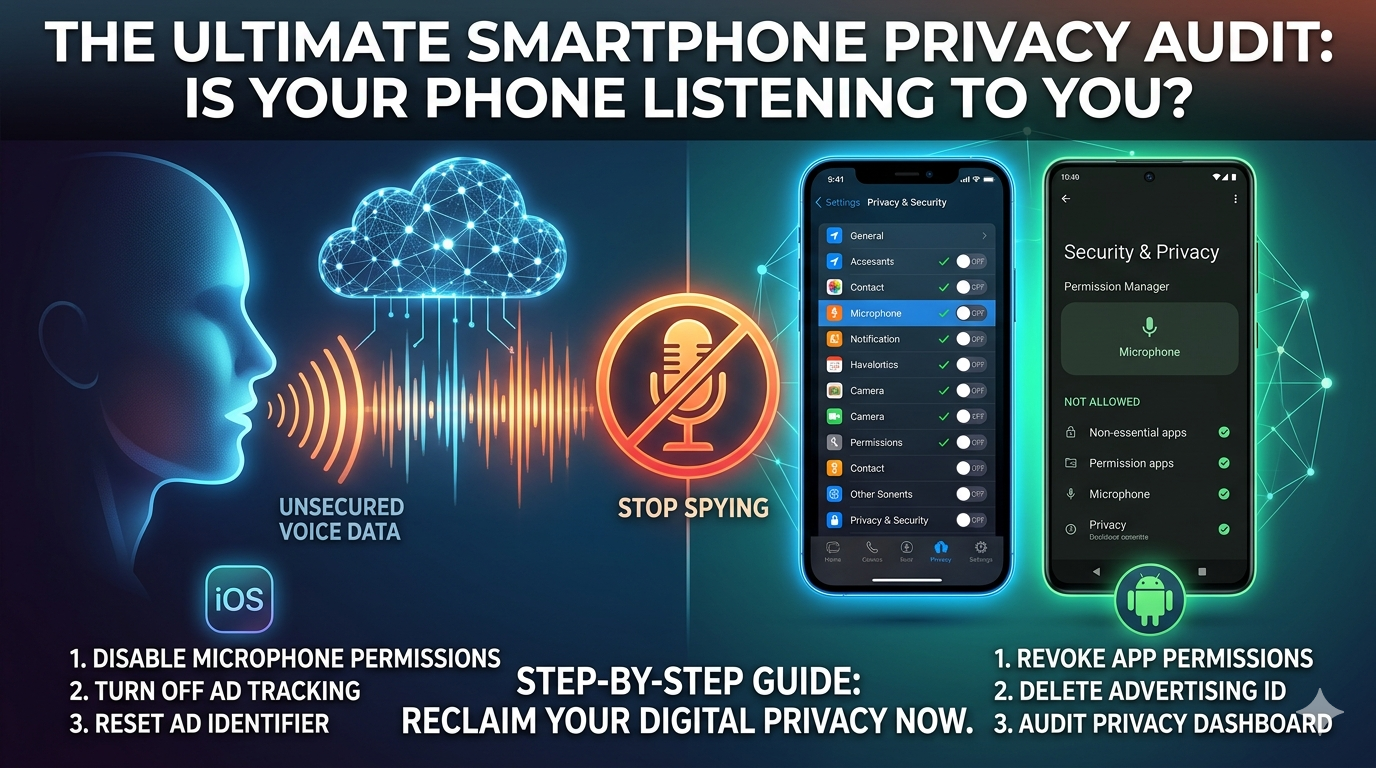
You have likely experienced the unsettling phenomenon of discussing a specific product, holiday destination, or brand out loud, only to open your social media feed minutes later and find an advertisement for that exact item. This frequent occurrence leaves millions of everyday users wondering whether their devices are actively intercepting private verbal conversations in the background.
While smartphone manufacturers and technology conglomerates consistently deny that microphones are permanently recording conversations for advertising profiles, the reality is that complex application networks constantly harvest massive volumes of background metadata, device tracking logs, and expansive permission metrics. If an application possesses unrestricted background access, it can silently gather precise acoustic, behavioral, and telemetry profiles that make your digital identity feel completely exposed. To reclaim ownership over your personal data, you must conduct a thorough, step-by-step digital safety sweep across your device hardware.
Part 1: Deactivating Background Microphone Access
The most critical baseline defense against invasive background tracking involves taking absolute control over your physical hardware access. Many applications demand microphone permissions during their initial installation setup, retaining that access permanently even when the software has absolutely no functional need to record audio.
The Apple iOS Protocol
To secure an iPhone, users must navigate directly to the primary configuration dashboard.
- Open the core Settings application on your device.
- Scroll down and enter the Privacy and Security structural dashboard.
- Locate and select the Microphone subcategory from the hardware list.
- Carefully review the comprehensive directory of applications currently holding audio recording privileges.
- Systematically toggle the access switch to Off for any software that does not require direct voice input, such as mobile shopping platforms, basic mobile games, and casual photo editing utilities.
The Google Android Protocol
Modern Android operating systems feature centralized dashboards designed to monitor hardware access points over extended periods.
- Launch the device Settings panel.
- Scroll downward and select the Security and Privacy or standalone Privacy section depending on your specific device manufacturer interface.
- Select the Permission Manager option to view the full hardware allocation chart.
- Tap the Microphone category to see how privileges are distributed.
- Group your apps into clear categories: Allowed All the Time, Allowed Only While in Use, and Not Allowed.
- Select individual applications and immediately switch their settings to Don’t Allow or Ask Every Time to block unexpected background audio capturing.
Part 2: Disabling Cross-App Tracking and Personalized Advertising
Even if you severely limit direct microphone access, applications can effortlessly build highly accurate profiles of your daily habits by tracking your physical movements, web browsing history, and cross-application interactions. This aggregated data allows advertising algorithms to predict your thoughts and conversation topics with alarming accuracy.
+-----------------------------------+-----------------------------------+
| Unrestricted Default Settings     | Hardened Privacy Configuration    |
+-----------------------------------+-----------------------------------+
| Apps follow your web footprints   | Cross application tracking blocked|
| Unique ad ID links to behavior    | Advertising identifier completely reset|
| Location tracked in background     | Location limited strictly to active use|
| Data shared with third parties    | Inbound telemetry tracking denied |
+-----------------------------------+-----------------------------------+
Eliminating Tracking on iOS
Apple utilizes an App Tracking Transparency framework that allows users to issue a universal refusal to cross-app data mining.
- Enter your iPhone Settings dashboard.
- Tap directly into Privacy and Security and select the Tracking menu.
- Locate the master switch labeled Allow Apps to Request to Track.
- Toggle this master option completely Off.
- Turning this setting off automatically instructs all newly installed and existing applications to completely cease tracking your digital footprints across external web domains and third-party services.
Dismantling the Android Advertising Identifier
Google utilizes a unique, device-specific advertising profile string that consolidates your digital preferences into a single searchable monetization token. To stop this tracking, you must break that link.
- Open your Android Settings panel.
- Scroll to the lower portion of the screen and choose the Privacy or Privacy Controls subsection.
- Select the Ads configuration entry.
- Tap the option labeled Delete Advertising ID.
- Confirm the deletion to instantly scrub the unified tracking token associated with your Google services, forcing advertising networks to treat your device as an anonymous entity.
Part 3: Utilizing System Privacy Dashboards for Deep Audits
Modern smartphone operating systems provide robust, enterprise-grade auditing tools that generate exhaustive logs detailing precisely when, where, and how long individual applications have deployed your device sensors.
+--------------------------+------------------------+------------------------+
| Diagnostic Tool          | OS Availability        | Practical Functionality|
+--------------------------+------------------------+------------------------+
| Privacy Dashboard        | Android 12 and Above   | 24 hour hardware log   |
| App Privacy Report       | iOS 15.2 and Above     | 7 day domain data trace|
| Status Bar Indicators    | Both Systems           | Real time sensor alert |
+--------------------------+------------------------+------------------------+
Conducting a Review via the Android Privacy Dashboard
The native Android auditing interface acts as an internal security log for your hardware.
- Access the device Settings and choose Security and Privacy.
- Tap into the Privacy Dashboard interface.
- You will be presented with a clear circular graphic illustrating sensor usage over the preceding twenty-four hours.
- Click specifically on the Camera, Microphone, or Location sectors to view an exact chronological timeline of which applications requested access and the precise duration of those connections.
- If an unusual application shows activity at an hour when your phone was sitting idle on a desk, select that specific app name and revoke its system privileges immediately.
Executing a Comprehensive Audit via iOS App Privacy Report
Apple provides a deep-dive data map that charts not only hardware access but also outbound server communication.
- Open the iPhone Settings panel.
- Enter Privacy and Security and scroll to the bottom to find App Privacy Report.
- Select Turn On App Privacy Report if it was previously dormant, and allow your device to gather data for several hours.
- Once active, review the Data and Sensor Access ledger to check your microphone, camera, and photo library access over the last seven days.
- Scroll down to the Network Activity panel to review the exact web domain addresses that specific apps are contacting in the background, allowing you to catch hidden data-sharing systems in real time.
Part 4: Physical Awareness Indicators and Master Emergency Controls
In addition to deep software settings, both primary mobile platforms provide immediate visual cues and emergency master toggles to ensure you maintain complete physical oversight of your device.
Real-Time Status Bar Indicators
Whenever an application activates your microphone or camera system, a small colored dot appears in the upper right-hand corner of your status bar. On iOS devices and standard Android builds, an orange or amber dot signals active microphone recording, while a green dot denotes that the camera shutter system is actively processing video frames. If these visual indicators appear when you are not actively using a voice-recording feature, swipe down into your control center immediately to identify the offending application and shut it down.
The Android Master Kill Switch
For environments where you demand complete acoustic confidentiality, Android allows you to place absolute hardware blockades directly into your quick access menu.
- Swipe downward twice from the top edge of your screen to reveal the full Quick Settings grid.
- Tap the pencil or edit icon to modify your available quick setting tiles.
- Locate the hidden tiles labeled Microphone Access and Camera Access and drag them into your active layout grid.
- Exit the editing panel.
- You can now tap these master toggles at any time to completely cut off power to your camera and microphone arrays. This creates a full hardware-level blockade that prevents any application on your device from capturing audio or video until you choose to re-enable the tile.
Final Security Audit Checklist
To maintain a secure digital perimeter, you should execute this foundational security audit at least once every quarter. Digital privacy is not a static configuration; it is an ongoing habit.
As applications roll out background updates, their permission definitions can shift, and new software installations will continuously try to opt you back into aggressive data collection pipelines. Taking twenty minutes to clear out unused applications, delete old tracking profiles, and restrict background sensor access ensures your smartphone remains an executive tool for communication rather than an open window for unauthorized behavioral surveillance.
